SPF, DKIM and DMARC explained for business owners
Two things happened to one of our clients in the same week. First, a prospect called to ask why the invoice we'd sent had landed in their junk folder. Then, a supplier forwarded an email that appeared to come from our client's domain — asking for an urgent bank transfer. The domain was legitimate. The email was not. Both problems had the same root cause: no email authentication was configured.
SPF, DKIM, and DMARC are the three standards that fix this. Together they tell the internet which servers are allowed to send on your behalf, prove your messages haven't been tampered with in transit, and instruct receiving mail servers what to do when someone tries to send fraudulent email using your domain name.
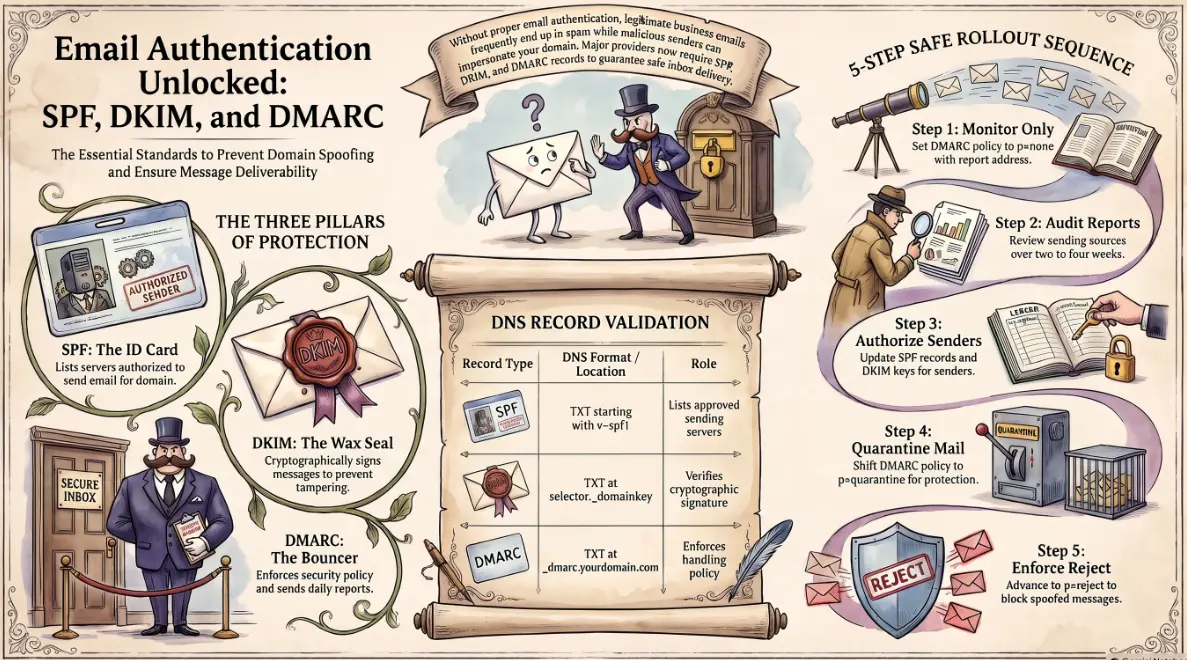
The ID card, the wax seal, and the bouncer
Each of the three standards does a different job. The easiest way to understand them is through a single analogy.
SPF (Sender Policy Framework) is the ID card. It is a DNS record on your domain that lists every mail server authorised to send email on your behalf. When a message arrives claiming to be from you, the receiving server checks your SPF record and asks: "Is this server on the approved list?" If not, it is a red flag.
DKIM (DomainKeys Identified Mail) is the wax seal. When your mail server sends a message, it applies a cryptographic signature — invisible to the reader, but verifiable by any receiving server. If the message was altered in transit, the seal is broken and the check fails. DKIM proves the message is genuinely yours and arrived intact.
DMARC (Domain-based Message Authentication, Reporting and Conformance) is the bouncer at the door. It reads the SPF and DKIM results and enforces a policy you define: monitor only (p=none), send to junk (p=quarantine), or reject outright (p=reject). It also sends you daily reports on who is sending mail using your domain — legitimate or otherwise.
Without all three working together, your domain is an open identity. Anyone can put your name on an envelope.
Why Google, Yahoo and Microsoft now enforce authentication
In early 2024, Google and Yahoo announced that bulk senders must have SPF, DKIM, and a DMARC policy in place or their mail will be rejected. Microsoft followed with similar enforcement for Exchange Online and Outlook.com.
The practical impact for businesses: even if you send a small volume, your domain reputation now depends on these records being present and correctly configured. A missing or misconfigured SPF record is now enough to push legitimate email into junk — or block it entirely.
This is not a bulk-email problem. A single invoice or proposal sent to a Gmail or Outlook address can be affected.
How to check your domain in two minutes
You do not need to dig into DNS manually to see where you stand. Two free tools give you a clear picture:
- MXToolbox (mxtoolbox.com) — paste your domain and run the SPF, DKIM, and DMARC checks individually. It returns a plain-English result with specific error messages.
- Google Admin Toolbox (toolbox.googleapps.com) — validate your records directly against Google's own infrastructure.
What you are looking for:
- SPF: one TXT record starting with
v=spf1, listing your authorised sending servers - DKIM: a TXT record with your selector (e.g.
selector1._domainkey.yourdomain.com) and a public key - DMARC: a TXT record at
_dmarc.yourdomain.comcontaining at minimumv=DMARC1; p=none; rua=mailto:reports@yourdomain.com
If any of these are missing, that is the gap letting your email land in junk — or letting attackers impersonate your business.
Moving from p=none to p=reject without breaking your email
The most common mistake is jumping straight to p=reject before auditing every legitimate mail source. Marketing platforms, helpdesk tools, CRM systems, and accounting software may all send email on your behalf. If they are not in your SPF record and do not have DKIM configured, enforcing a reject policy will silently block their messages — with no bounce or error to the sender.
The safe sequence is:
- Start at
p=nonewith aruareporting address configured - Wait two to four weeks and review the DMARC aggregate reports — they list every source sending from your domain
- Add any legitimate senders to your SPF record and configure DKIM for each
- Move to
p=quarantineonce all legitimate sources are covered - Advance to
p=rejectafter a further monitoring period with no unexpected failures
If your business runs on Microsoft 365, Exchange Online has specific DKIM configuration steps that differ from generic guidance, and SPF records must account for Microsoft's sending infrastructure correctly. Getting this wrong is one of the most common causes of M365 mail deliverability problems we see. Andi-Tech handles the full configuration — SPF, DKIM, DMARC rollout, and ongoing report monitoring — as part of our cybersecurity solutions, so your domain is protected without disrupting the email flow your business depends on.
📧 Is your domain protected — or is someone already sending email as you?
Andi-Tech configures SPF, DKIM, and DMARC for Microsoft 365 and Exchange Online — including a safe rollout from p=none to p=reject, DMARC report monitoring, and a full audit of every legitimate sending source on your domain.
Contact us at info@andi-tech.com
— let's lock down your domain before an attacker does it for you.