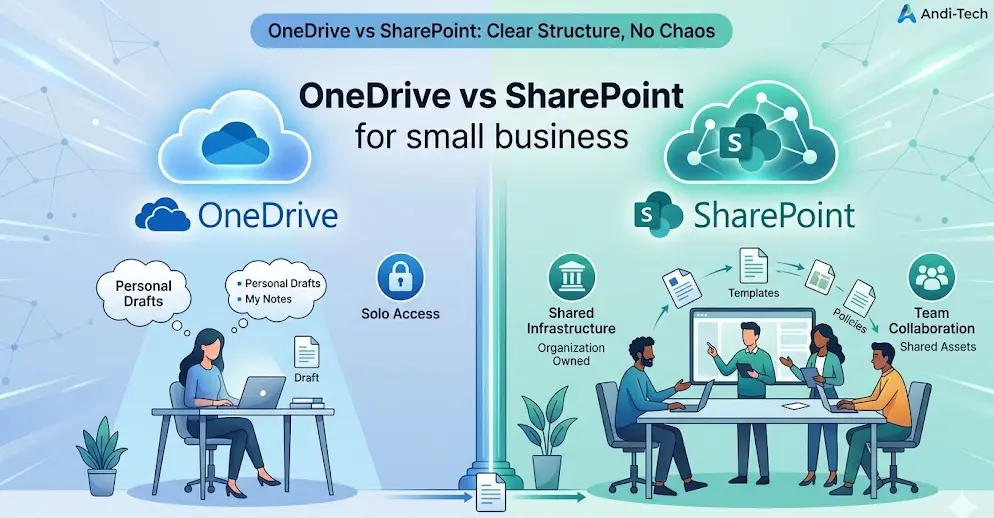
OneDrive vs SharePoint for small business: which to use
A marketing manager saves her campaign assets to OneDrive. A colleague uploads the same files to a SharePoint site. A third team member can't find either version and starts a new folder on their desktop. By Thursday, there are four copies of the same document, nobody is sure which is current, and the campaign brief has been edited in three different directions simultaneously.
This is not a storage problem. It is a structure problem — and it starts with not knowing what OneDrive and SharePoint are each actually built to do.
What OneDrive is designed for — personal work files
OneDrive is personal cloud storage. Think of it as your work bag: it travels with you, it holds your things, and by default only you can see what's inside.
Files saved to OneDrive are owned by the individual user. They sync to that person's devices, they are accessible offline, and they are tied to that person's Microsoft 365 account. When that employee leaves the business, their OneDrive goes with them — unless IT intervenes to preserve or transfer the content.
OneDrive is the right home for:
- Work in progress that is not yet ready to share
- Personal reference documents — notes, templates, drafts
- Files you are working on alone before moving them into a shared space
- Individual deliverables that belong to your role rather than your team
The key principle: if only you need access to it right now, it belongs in OneDrive.
What SharePoint is designed for — team collaboration and shared repositories
SharePoint is shared infrastructure. Think of it as the office filing system: structured, accessible by the right people, and not dependent on any one individual being present for others to find what they need.
Files stored in SharePoint belong to the team or the organisation — not to any single user. Permissions are managed at the site, library, or folder level. When someone leaves, their files remain fully accessible to everyone who had access before.
SharePoint is the right home for:
- Team documents that multiple people need to read, edit, or reference
- Shared templates, policies, and company-wide resources
- Project files that need version history and collaborative editing
- Anything that should survive a staff change without IT intervention
The key principle: if more than one person needs ongoing access to it, it belongs in SharePoint.
Where the confusion comes from — and why Microsoft partly caused it
The honest answer is that Microsoft's own product decisions have blurred the line significantly.
When you create a Team in Microsoft Teams, a SharePoint site is automatically created behind it. Files shared in a Teams channel are stored in that SharePoint site — but users see them inside Teams and often have no idea SharePoint is involved. OneDrive appears in the same Teams interface for personal files. The visual experience is nearly identical.
Additionally, SharePoint and OneDrive share the same underlying sync client. Files from both platforms appear in Windows Explorer under the same OneDrive application. To a user who hasn't been told the difference, it all looks like one thing.
The result is predictable: people store shared team files in OneDrive because it feels familiar, and individual files end up in SharePoint because a Teams channel happened to be open. Neither is what either platform is designed for.
Practical decision matrix — which platform for which file type
Use this as a working reference for your team:
| File type | Where it belongs |
|---|---|
| Draft document you're writing alone | OneDrive |
| Finished document the team needs | SharePoint / Teams channel |
| Personal meeting notes | OneDrive |
| Shared meeting agenda | SharePoint / Teams channel |
| Your own copy of a company template | OneDrive |
| The master version of the template | SharePoint |
| A client deliverable in progress | OneDrive until finalised |
| A client deliverable once approved | SharePoint or dedicated client site |
The transition point is publication: when a file moves from personal work to shared use, it should move from OneDrive to SharePoint.
Best practices for structuring both so they work together
Getting the structure right once prevents the sprawl from returning. A few principles that hold across most SMBs:
- 🏢 Limit SharePoint sites to meaningful units — one per team or department, not one per project. Too many sites creates the same discovery problem as no structure at all.
- 📂 Name libraries and folders for the content, not the person — "Marketing Assets" ages better than "Sarah's Files."
- 💬 Use Teams channels as the access point to SharePoint — most users never need to visit SharePoint directly. Surfacing the right files inside the right Teams channel removes the need to navigate the back end.
- 📋 Set a clear rule for OneDrive — if your whole team knows "OneDrive is for drafts, SharePoint is for shared files," most structure problems resolve themselves.
- 🔒 Restrict sharing from OneDrive for sensitive content — OneDrive personal shares can expose files without IT visibility. Anything sensitive that needs sharing should live in SharePoint where permissions are managed centrally.
Most businesses that come to us with a file chaos problem don't need new software — they need a clear information architecture and a ten-minute explanation for staff. Andi-Tech's Microsoft cloud services include Microsoft 365 environment structuring, SharePoint site design, and OneDrive governance policy — so your team always knows where files live and why.
📁 Files scattered across OneDrive, SharePoint, and Teams — and nobody knows which is current?
Andi-Tech designs and implements clear Microsoft 365 information architecture for SMBs — SharePoint site structure, OneDrive governance, and Teams channel setup that your whole team can actually follow.
Contact us at info@andi-tech.com
— let's get your files organised once and keep them that way.