Microsoft Intune for small business device management
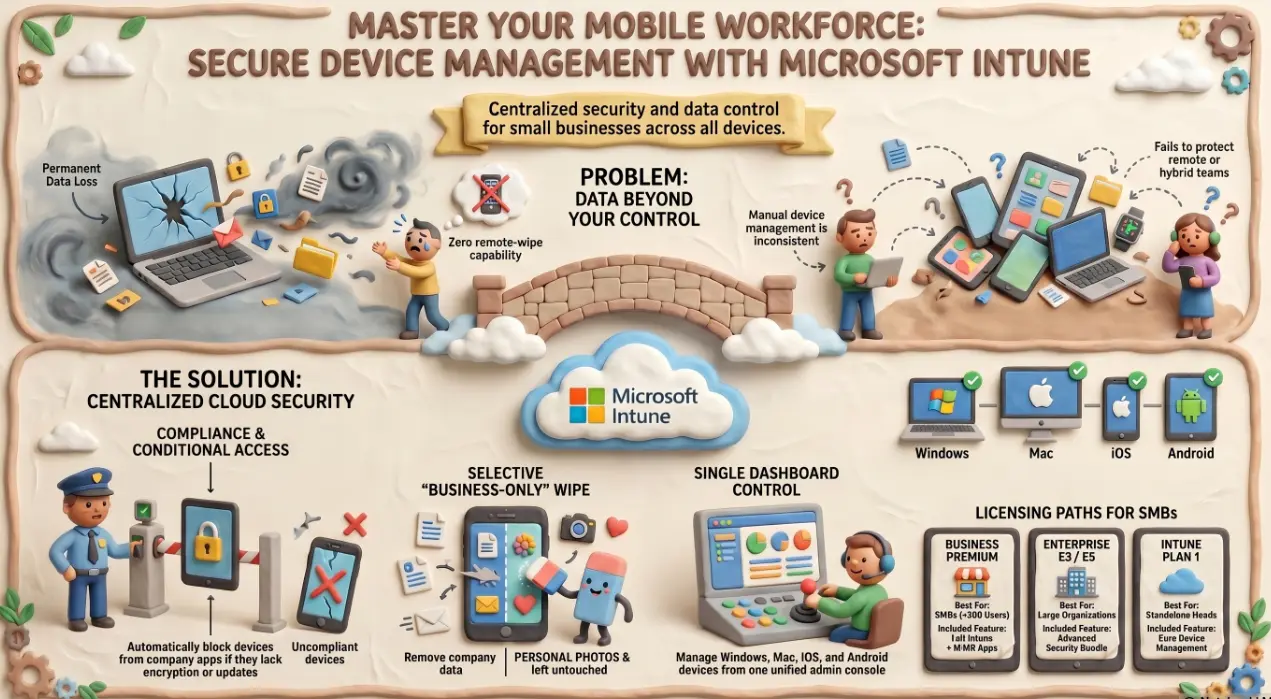
A sales manager boards a train in Chicago, laptop in bag. By the time she reaches her destination, the bag is gone. On that laptop: a CRM export with 3,000 client records, a folder of contract drafts, and cached Microsoft 365 credentials. The IT manager gets the call. She opens her laptop, navigates to the device management console — and finds nothing. No remote wipe option. No way to revoke access. No visibility at all. The device is simply gone, and so is everything on it.
That scenario is not unusual. It is the exact problem Microsoft Intune exists to prevent.
What Microsoft Intune is and what problem it solves
Microsoft Intune is a cloud-based Mobile Device Management (MDM) and Mobile Application Management (MAM) platform. In plain terms: it gives IT administrators centralised control over every device that accesses company data — whether that device is a company-owned laptop or an employee's personal iPhone.
Without Intune, device management is typically manual, inconsistent, or non-existent. Policies exist in documents rather than systems. Offboarding an employee means hoping they return their device. A lost laptop is a full incident with no resolution path.
With Intune, the IT manager in that Chicago scenario would have had a remote wipe button available within seconds.
Device enrolment — Windows, Mac, iOS, and Android under one dashboard
Intune manages devices across every major platform from a single Microsoft Endpoint Manager admin console:
- 💻 Windows — enrolls via Autopilot (zero-touch provisioning for new devices) or manual enrolment through Settings
- 🍎 macOS — enrolled via Apple Business Manager, with configuration profiles applied automatically
- 📱 iOS and iPadOS — corporate-owned or personal (BYOD) devices enrolled via Apple Business Manager or the Company Portal app
- 🤖 Android — Android Enterprise enrolment for both corporate and personal-use scenarios
Once enrolled, each device becomes visible in the console with its compliance status, last check-in time, installed applications, and OS version. For an IT manager supporting a hybrid team of 20 or 200, this replaces guesswork with a single source of truth.
Compliance policies, Conditional Access, and why they work together
Intune's compliance policies define what a healthy, permitted device looks like. Examples include:
- Minimum OS version enforced
- BitLocker or FileVault disk encryption required
- Screen lock PIN or biometric required
- Jailbroken or rooted devices flagged as non-compliant
On their own, compliance policies are informational. The enforcement happens when you connect them to Conditional Access in Microsoft Entra ID. A non-compliant device — one running an outdated OS, missing encryption, or flagged for policy violation — is automatically blocked from accessing Microsoft 365 apps, SharePoint, Teams, and any other connected service.
This combination means that access to company data is no longer controlled purely by credentials. The device itself must pass inspection first.
App management — pushing software and revoking access without touching the device
Intune separates device management from application management, which matters particularly for BYOD scenarios. Under app-based management, IT can:
- Push approved apps silently to enrolled devices without user action
- Apply app protection policies that prevent copy-paste between corporate and personal apps
- Require PIN or biometric authentication before a managed app opens
- Selectively wipe only corporate data from a personal device — leaving personal photos, contacts, and apps completely untouched
That last point is significant for organisations where employees use personal phones for work email. A full device wipe on a personal device is legally and practically complicated. A selective corporate wipe — removing Outlook, Teams, and company files while leaving everything else intact — is not.
For a business with a remote or hybrid workforce, app protection policies provide meaningful data controls without requiring employees to surrender personal device ownership.
Intune licensing — what plan do you need and is it worth it for SMBs
Intune is included in several Microsoft 365 plans, so many businesses already have access without knowing it:
- 🏆 Microsoft 365 Business Premium — includes Intune and is the recommended plan for SMBs under 300 users
- 🏢 Microsoft 365 E3 / E5 — enterprise plans that include Intune as part of the broader EMS (Enterprise Mobility + Security) bundle
- 🔧 Intune Plan 1 standalone — available separately for organisations already licensed differently
For a business on Microsoft 365 Business Premium, Intune is not an additional cost — it is an unused feature. The investment is in configuration and deployment, not licensing.
The honest answer to "is it worth it for a team of under 100 users?" is yes — but only if it is configured correctly. An Intune deployment with incomplete enrolment, no Conditional Access policies, and unreviewed compliance rules provides a false sense of security. Deployed properly, it is one of the most effective controls an SMB can implement for hybrid work data protection.
Andi-Tech's Microsoft cloud services include end-to-end Intune deployment — device enrolment, compliance policy configuration, Conditional Access integration, and ongoing management — so your device estate is protected from day one, not patched together over time.
📱 Ready to take control of every device that touches your business data?
Andi-Tech deploys and manages Microsoft Intune for SMBs — from initial enrolment and compliance policies to Conditional Access integration and app protection for BYOD teams.
Contact us at info@andi-tech.com
— let's get your devices enrolled, your policies enforced, and your data protected.