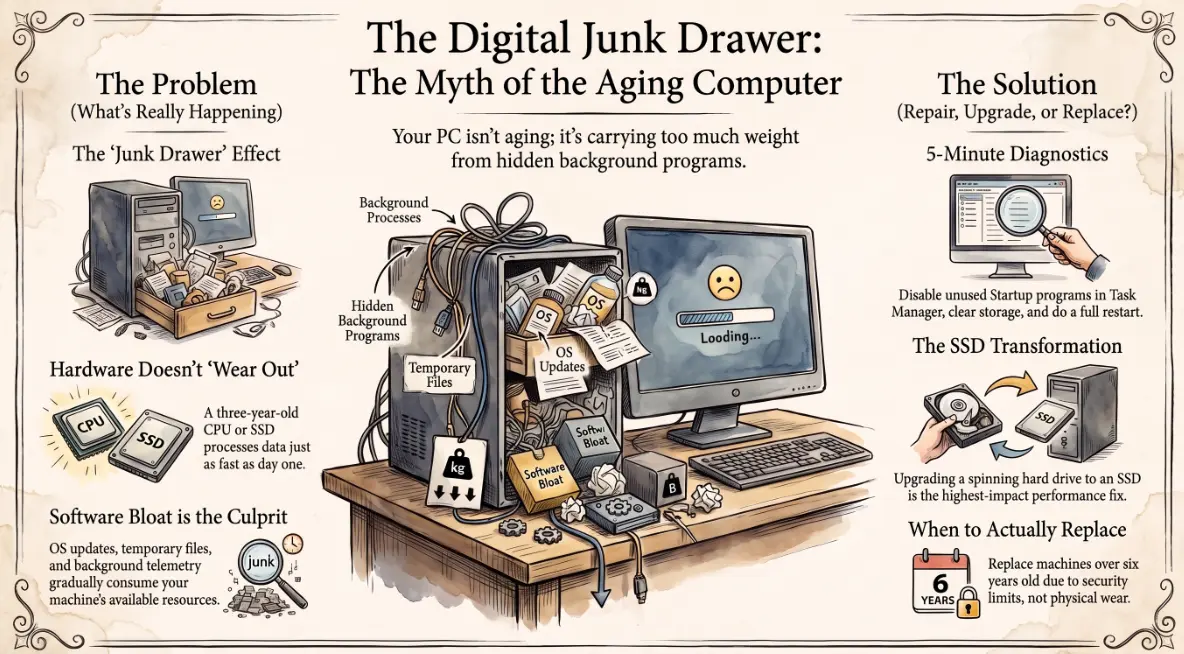
Why is my computer getting slower over time — explained
You know that drawer in the kitchen — the one that started with a few batteries, a takeaway menu, and a spare key? Three years later it won't close properly, something rattles every time you open it, and finding anything useful requires a minor archaeological expedition. Your laptop has been doing exactly the same thing, just quietly, in the background, since the day you switched it on.
The difference is that nobody ever tells you to clean out a computer's junk drawer. So most people don't — and then assume the machine is just old.
What is really happening under the hood
A new computer feels fast partly because it is fast, and partly because it is empty. The operating system has room to breathe. Startup takes seconds. Everything opens immediately.
Over time, that changes. Not because the hardware physically deteriorates — but because the environment it runs in gets progressively more crowded.
The main culprits, running in the background without you asking:
- 🚀 Startup programs — every application you install quietly adds itself to the startup list. After a few years of installing apps, your computer may be launching thirty or forty programs before you have even opened a single browser tab. Each one consumes RAM and CPU while it sits there doing nothing you asked for.
- 🔄 Windows and driver updates — operating systems grow. Windows 11 is significantly larger than Windows 10, which was larger than Windows 7. Each major update layers new features, new background services, and new resource requirements on top of hardware that was specified for a lighter version.
- 🗂️ Temporary files — every browser session, every application update, every document edit leaves behind temporary files. These accumulate in folders most users never see, gradually consuming storage and occasionally conflicting with active processes.
- 📡 Background services and telemetry — modern software runs persistent background processes: crash reporting, automatic update checks, cloud sync, usage analytics. Each is small individually. Together, on a machine with forty applications installed, the background load becomes significant.
The machine is not slowing down. It is carrying more weight than it was designed for.
The myth of "it just gets old"
This one deserves to be put to rest, because it costs businesses money unnecessarily.
Physical hardware does not wear out at the speed most people assume. The CPU in a three-year-old laptop performs exactly the same number of calculations per second as it did when it was new. The SSD reads and writes at the same speed. RAM capacity has not shrunk. None of the hardware has degraded.
What has changed is the software environment — and that is almost always fixable without replacing the machine. The mistake is treating a software problem as a hardware death sentence, and buying a new device when a clean-up or reinstall would produce identical results for a fraction of the cost.
The exception is machines that were under-specified from the start. A laptop purchased with 4GB of RAM and a spinning hard disk was already marginal in its first year. No amount of software maintenance will make it run a modern browser with twelve tabs comfortably.
Quick checks anyone can do in 5 minutes
Before calling IT or ordering a replacement, these checks take minutes and often reveal the problem immediately:
- Task Manager → Startup tab (Windows) — this shows every program that launches when your computer boots. Sort by "Startup impact" and disable anything you do not recognise or use daily. This alone can halve boot times on a congested machine.
- Task Manager → Processes tab — sort by CPU or Memory. If a single process is consuming 40%+ of resources consistently, that is your immediate problem. Note the name and search it — it is usually identifiable as a legitimate but misbehaving app, malware, or a Windows Update running in the background.
- Storage check — if your C: drive is above 85% full, performance degrades noticeably on machines with traditional hard drives and measurably on SSDs. Windows needs free space to operate efficiently. Clearing the Downloads folder and running Disk Cleanup can recover gigabytes in minutes.
- Restart, properly — a surprising number of "slow computer" reports are solved by a full restart rather than a sleep/wake cycle. Windows accumulates memory leaks and background process drift over days of continuous use. Restarting clears the slate.
When it is a software problem versus real hardware limits
A software issue typically looks like: gradual slowdown over months, high resource usage in Task Manager, slow boot times, specific applications hanging rather than the whole machine sluggish.
A hardware limit typically looks like: the machine is slow even immediately after a restart with nothing open, it struggles with tasks it handled without effort two years ago, or it overheats under light loads.
The fastest diagnostic is a clean Windows installation on the same machine. If the machine runs well on a fresh install, the problem is accumulated software. If it is still sluggish, the hardware is the constraint.
For IT managers supporting a fleet: this distinction matters because the remediation path is completely different. Software issues are resolved with maintenance, cleanup, or reinstall — all manageable at scale with tools like Intune. Hardware limits require a refresh cycle decision based on age, specification, and cost of downtime.
Deciding whether to repair, upgrade, or replace
A practical framework for the decision:
- ✅ Machine is under 4 years old, SSD, 8GB+ RAM → clean up and maintain. Software remediation will recover the performance. The hardware has usable life remaining.
- 💾 Machine is under 4 years old but spinning HDD → upgrade the storage. Replacing a hard drive with an SSD is the single highest-impact hardware upgrade available, typically costing under $60/$70, and transforming perceived performance more than any other single change.
- ⚖️ Machine is 4–6 years old → assess against replacement cost. If maintenance returns adequate performance, continue. If it requires a hardware upgrade and is approaching end-of-support for its operating system, replacement is more cost-efficient.
- 🔁 Machine is 6+ years old → plan for replacement. Not because it has worn out, but because it cannot run current software securely, cannot be patched to current OS standards, and the risk of unexpected failure increases with age.
Most organisations replace devices too early or too late — early because they mistake a software problem for hardware failure, and late because nobody tracks the fleet's age systematically. Andi-Tech's 24/7 service desk includes device health checks and hardware lifecycle planning — so your team is never running on machines that are quietly holding productivity back, and never replacing hardware that a thirty-minute clean-up could have saved.
💻 Is your team's hardware slowing them down — or is it a software problem nobody has looked at yet?
Andi-Tech provides device health checks and hardware lifecycle planning for SMBs — identifying what needs a clean-up, what needs an upgrade, and what genuinely needs replacing, so your team has the right tools for the work they do.
Contact us at info@andi-tech.com
— let's find out what's actually slowing your machines down before you spend money on new ones.