⌨️ Shortcut Samurai: How Windows Keyboard Tricks Make You Faster
Have you ever watched someone type like a Jedi with the Force? One minute they’re opening folders, switching apps, snapping windows into place — all without touching the mouse. It’s like watching teleportation… but in the world of Windows.
Most of us know a couple of shortcuts — Ctrl+C and Ctrl+V, right? But what if I told you there’s a whole secret toolkit hiding on your keyboard that can make everyday computing feel like magic? You just need to unlock it. ✨
🧠 The Shortcut Idea — What Are We Even Talking About?
Keyboard shortcuts are combinations of keys that perform actions you normally do with your mouse. They save time, remove distraction, and once you get used to them, they feel natural. Think of them as invisible paths through your computer: instead of walking around every corner, you teleport. Press two or three keys and boom! You’re where you want to be.
🕹️ The Everyday Magic — Shortcuts You’ll Use Today
Let’s start with some truth you can feel immediately.
🚀 Instant Access Shortcuts
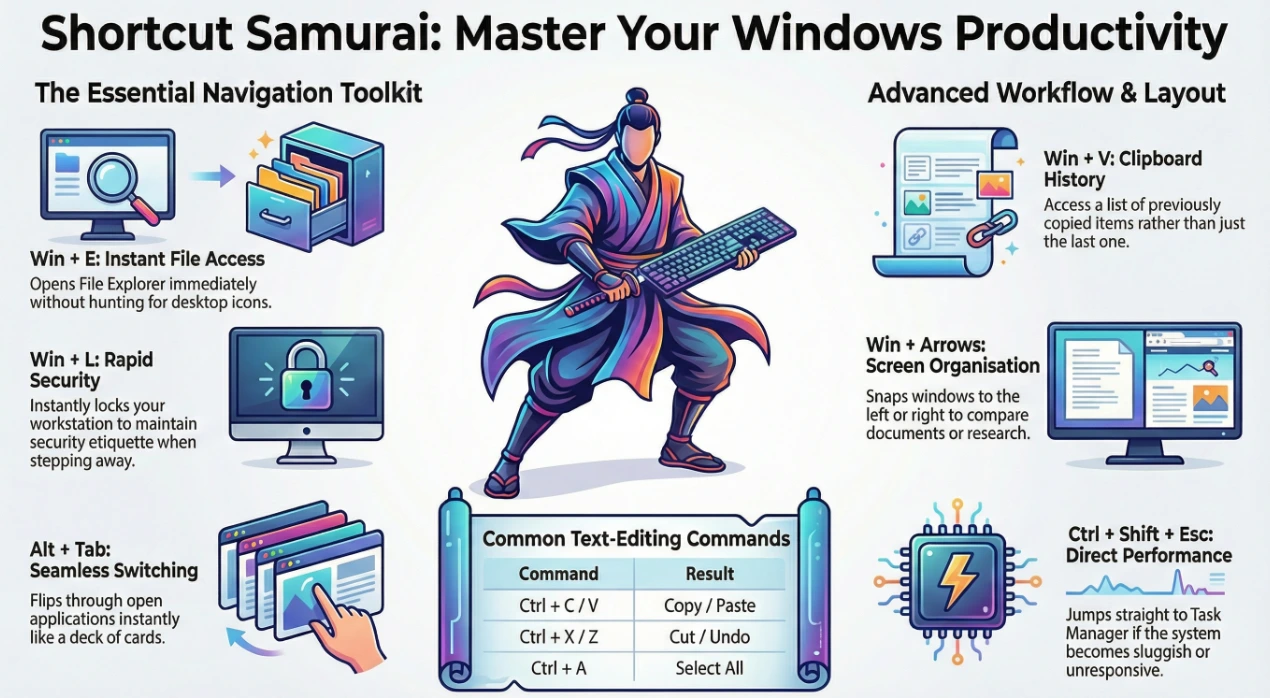
Windows key + E — 🚪 Open File Explorer
Whenever you want to dive into your files, skip hunting the icon — E opens it instantly.
Windows key + I — ⚙️ Open Settings
Need to tweak brightness, sound, or power options? This shortcut is like a direct tunnel to your system settings.
Windows key + L — 🔒 Lock Your PC Fast
Walk away from your desk? Lock your machine in a flash. It’s not just a shortcut — it’s good security etiquette.
🔄 Multitasking Like a Pro
Alt + Tab — 🌀 Switch Between Apps
Imagine your open apps as cards fanned out in front of you. Alt + Tab lets you flip through them instantly — no jumping back to the taskbar.
Windows key + Tab — 📋 Task View & Virtual Desktops
This shortcut shows all your open windows and lets you switch between virtual desktops — great for organizing work vs leisure spaces.
Ctrl + Shift + Esc — 🛠️ Open Task Manager Without Detour
Used when your system gets sluggish or unresponsive — this shortcut jumps straight into the performance center.
📋 Text Tricks That Feel Like Wizardry
Ctrl + C = 📋 Copy
Ctrl + V = 📥 Paste
Ctrl + X = ✂️ Cut
Ctrl + Z = ⏪ Undo something you didn’t mean to do
Ctrl + A = 📌 Select everything in the current view
Windows key + V — 📚 Clipboard History
You can paste not only the last thing you copied — but a whole list of previously copied items.
🧩 Organize Your Screen Like a Puzzle Master
Windows key + Left/Right Arrow — 📐 Snap Windows into Place
This instantly arranges your current window to the left or right half of the screen — perfect for comparing docs or writing while you research.
Windows key + Z — 🧩 Snap Layouts Pop-Up
Windows 11 shows you fancy snap layouts you can choose from — like stacking windows or putting four apps in corners — all without dragging and dropping.
😎 Advanced, Fun, and Hidden Shortcuts
Windows key + . (dot) — 😊 Emoji Panel
This turns your keyboard into a creativity playground — perfect for chats, documents, or just a bit of fun.
Ctrl + Shift + T — 🔁 Reopen Closed Tab (browser)
Closed the wrong tab? This shortcut brings it right back.
Users also discover shortcuts that aren’t widely documented — like hidden command menus, voice typing, or app launch combos — which shows how deep Windows’ power can go once you start exploring.
🧠 How to Learn Shortcuts Without Feeling Overwhelmed
Here’s a pro trick: don’t try to learn them all at once. Pick two or three you’ll use today. Practice them until they feel natural. Then add two more tomorrow. Before long, you’ll start doing things faster without thinking — that’s when the magic truly kicks in.
Bonus tip: Microsoft’s PowerToys utility can even display a shortcut cheat sheet when you hold the Windows key — a built-in reminder system for learning more.
🧠 Why Shortcuts Matter — A Simple Story
Remember when you learned touch typing? At first it felt slow. But then — suddenly — your fingers just knew. That’s exactly how shortcuts work. At first it’s muscle memory, but soon your workflow feels smarter and faster, and you’ll wonder how you ever clicked around without them.
Think of shortcuts like secret walkways in your digital house — once you know them, your everyday tasks become effortless journeys.
📩 Want to Boost Your Windows Skills Even More?
If you want deeper dives into Windows productivity tricks, custom shortcuts, or tools like PowerToys that help you work smarter — we’ve got you covered.
📧 Reach out at info@andi-tech.com — and let’s turn everyday Windows use into a productivity superpower. 💪🖥️