Encryption & BitLocker – keeping your data safe 🔐
🔐 Why Encryption Even Matters
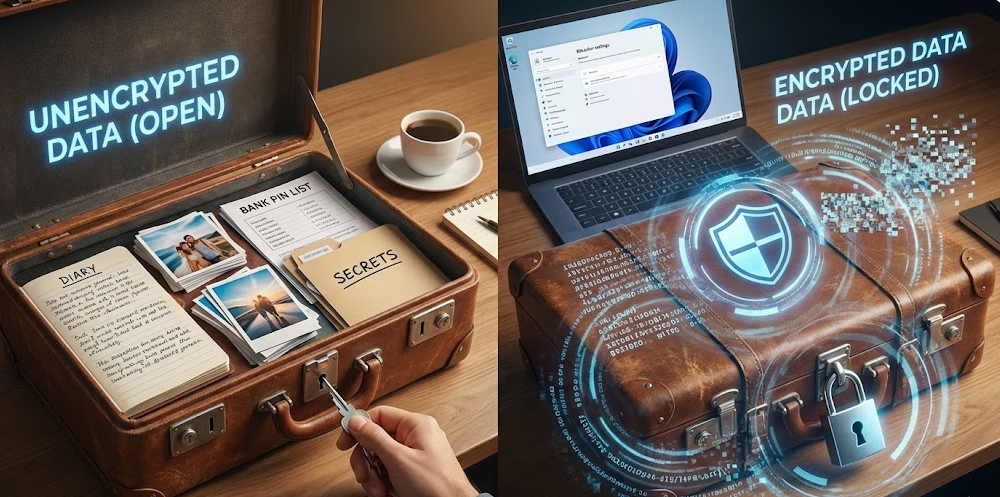
Imagine you have a magic suitcase. Inside you keep your diary, your photos, your bank PIN list, and some secrets. When the suitcase is locked with a key that only you have — even if someone grabs the suitcase — they only see gibberish. They get nothing.
That’s what encryption does: it locks up your data in a cryptographic “safe”. Without the right key, the contents make no sense. Computers, hard drives, and operating systems can all use encryption so your private files stay private — even if your device is lost, stolen or tampered with.
Encryption = suitcase lock. Plain data = open suitcase.
🧠 Enter BitLocker — Windows’ Built-In Safe Guard
On Windows computers, BitLocker is the built-in tool that acts like that magic suitcase lock. When you enable BitLocker, your entire drive — the place where Windows, your files, and apps live — gets encrypted. That means everything: system files, documents, photos, even temporary files.
With BitLocker switched on, if someone tries to read your drive without proper authorization (key or correct hardware), all they see is noise. Useless noise.
💡 BitLocker isn’t just for geeks. It’s a one-click protection tool built into Windows (on compatible editions).
✅ Why You Want to Encrypt Your PC
- If your laptop is lost or stolen — data stays safe. No easy way to “break in” just by pulling the SSD and plugging it elsewhere.
- Privacy for personal or work data. Sensitive documents, business files, personal photos — all locked tight.
- Compliance/regulation needs for business. Many sectors require encryption for data-at-rest.
- Peace of mind. Once enabled, you don’t need to think about it — encryption works silently in the background.
Encryption becomes the safety net you hope to never need, but are glad exists when you do.
🏗️ How BitLocker Works — Simple Behind-the-Scenes Explanation
Modern PCs often include a small security chip called Trusted Platform Module (TPM) — a secure crypto-processor that securely stores keys and helps keep your data protected.
BitLocker uses strong encryption to scramble data across the entire drive — when enabled, everything gets encrypted: OS, user files, temporary files — all locked down.
When you boot up your PC, TPM checks that the system hasn’t been tampered with (boot loader, firmware, etc.). If everything checks out, TPM unlocks the decryption key and Windows loads normally. If not — the drive stays locked until you provide the recovery key.
🍿 Story version: The TPM is like a trusted gatekeeper at the city gates. BitLocker locks the entire city. If the gatekeeper passes your credentials — gates open; if not — nothing moves.
🖱️ How to Enable BitLocker (Windows 11 / Windows 10 Pro & above)
- Open Settings → Privacy & security → Device encryption (on supported devices) — or go to Control Panel → System & Security → BitLocker Drive Encryption.
- Click “Turn on BitLocker” for the drive you want to encrypt.
- Choose where/how to save your recovery key — pick a safe place (see next section).
- Let Windows encrypt the drive. You can keep using your PC during the process. Once done — data is protected.
💡 On many modern PCs — especially those with TPM 2.0 and when you sign in with a Microsoft or work/school account — BitLocker (or built-in Device Encryption) may already be enabled automatically.
🔑 Where to Store the Recovery Key (and Why It Matters)
Your recovery key is like a spare key to the encrypted suitcase — lose it, and even you might be locked out forever. Here are safe storage options:
- Your Microsoft / Work Account (cloud backup): If you signed in with a Microsoft or work/school account, BitLocker can store the recovery key automatically online — easy and reliable.
- USB Flash Drive (offline): Save the key to a USB stick and keep it somewhere safe (not stored with the PC).
- Text File on a Separate Drive: Save the key to a non-encrypted drive or external storage.
- Printed Copy (paper): Print the 48-digit recovery key and store it securely (safe, locked drawer, etc.).
Never store the recovery key on the same drive you’re encrypting — that defeats the purpose of encryption.
🎯 Final Thought — Encryption Shouldn’t Be Optional
In a world where laptops, drives, and phones get lost, stolen or repurposed — encryption is the invisible safety net that protects your digital identity and data.
If your PC holds anything valuable — work documents, personal photos, sensitive data — enabling BitLocker today could save you a headache (or catastrophe) tomorrow.
📩 Need Help Setting It Up?
At Andi-Tech, we help small businesses, remote workers, and home users turn on BitLocker correctly — with TPM checks, secure key backup strategies, and trouble-free deployment.
Drop us a line at info@andi-tech.com — we’ve got your back, locked and encrypted.